
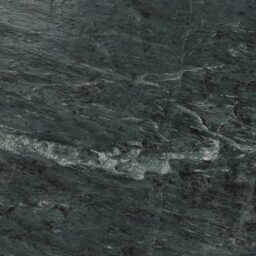
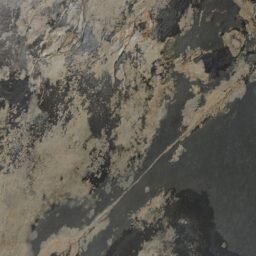
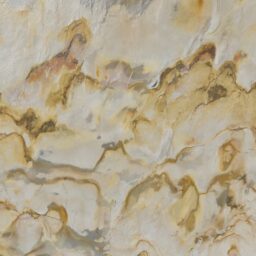
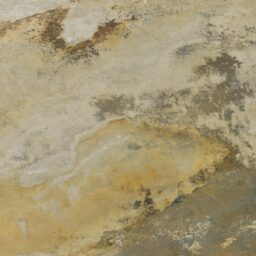
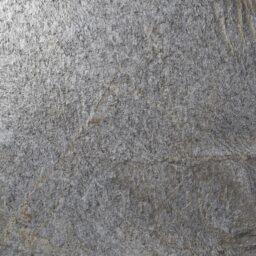
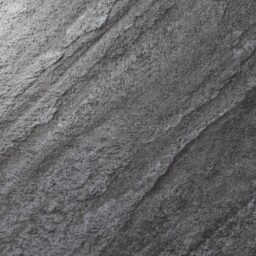
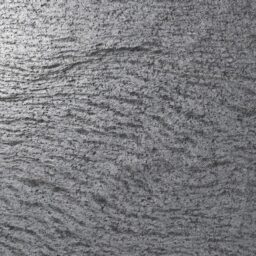
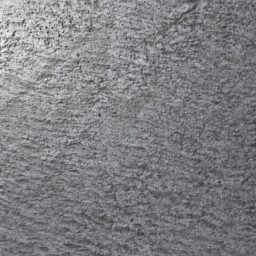

Details
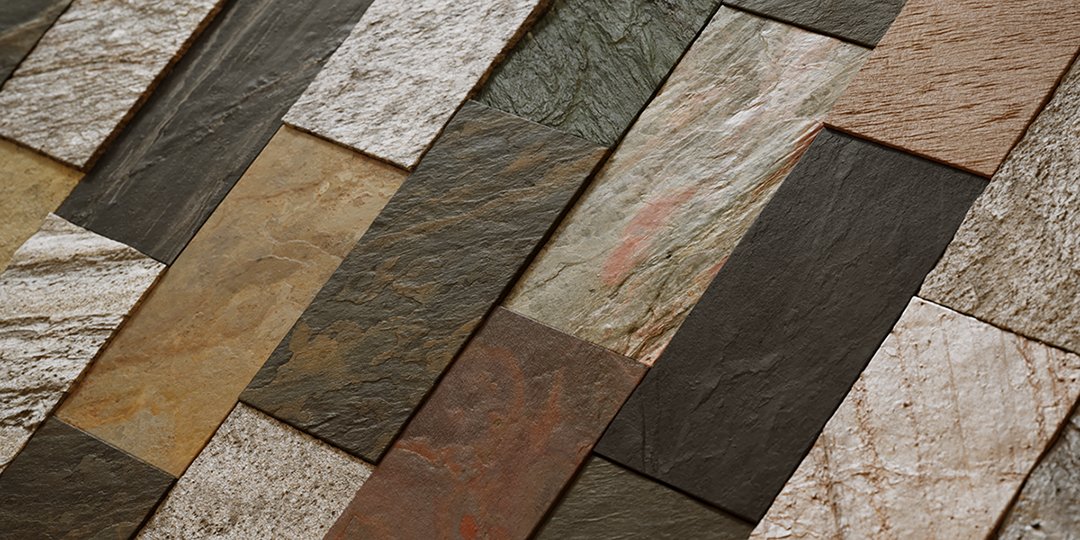
Seamless Stone
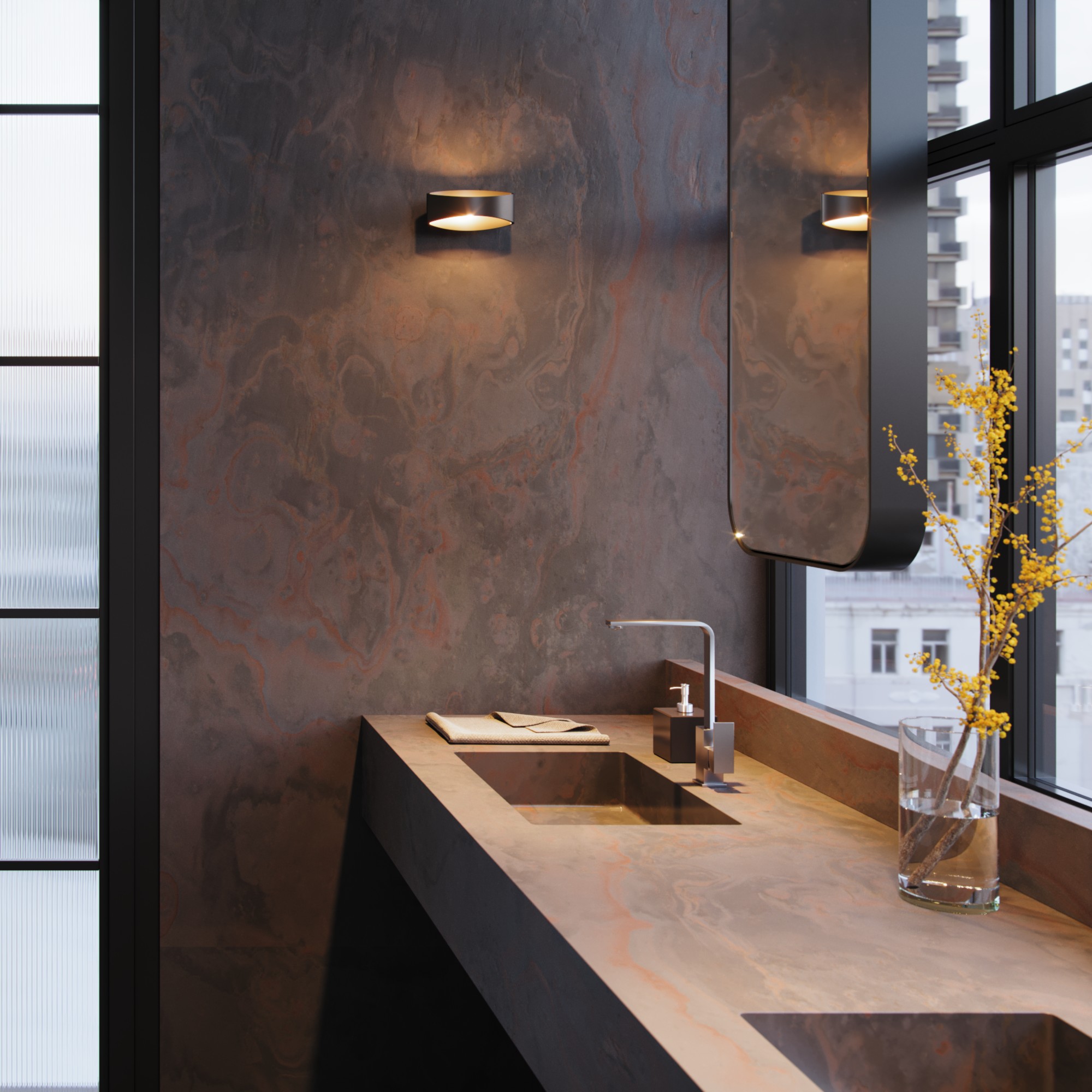
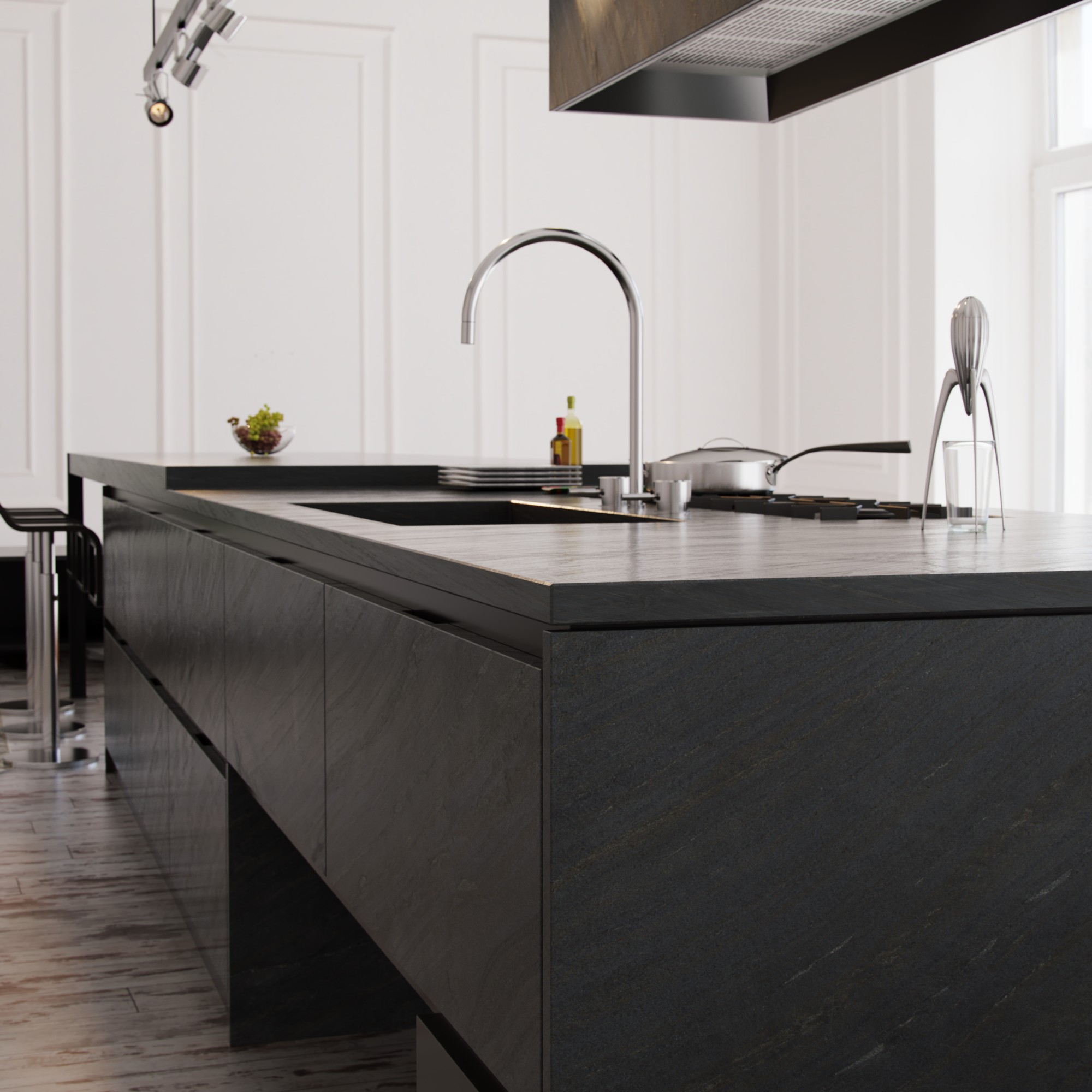
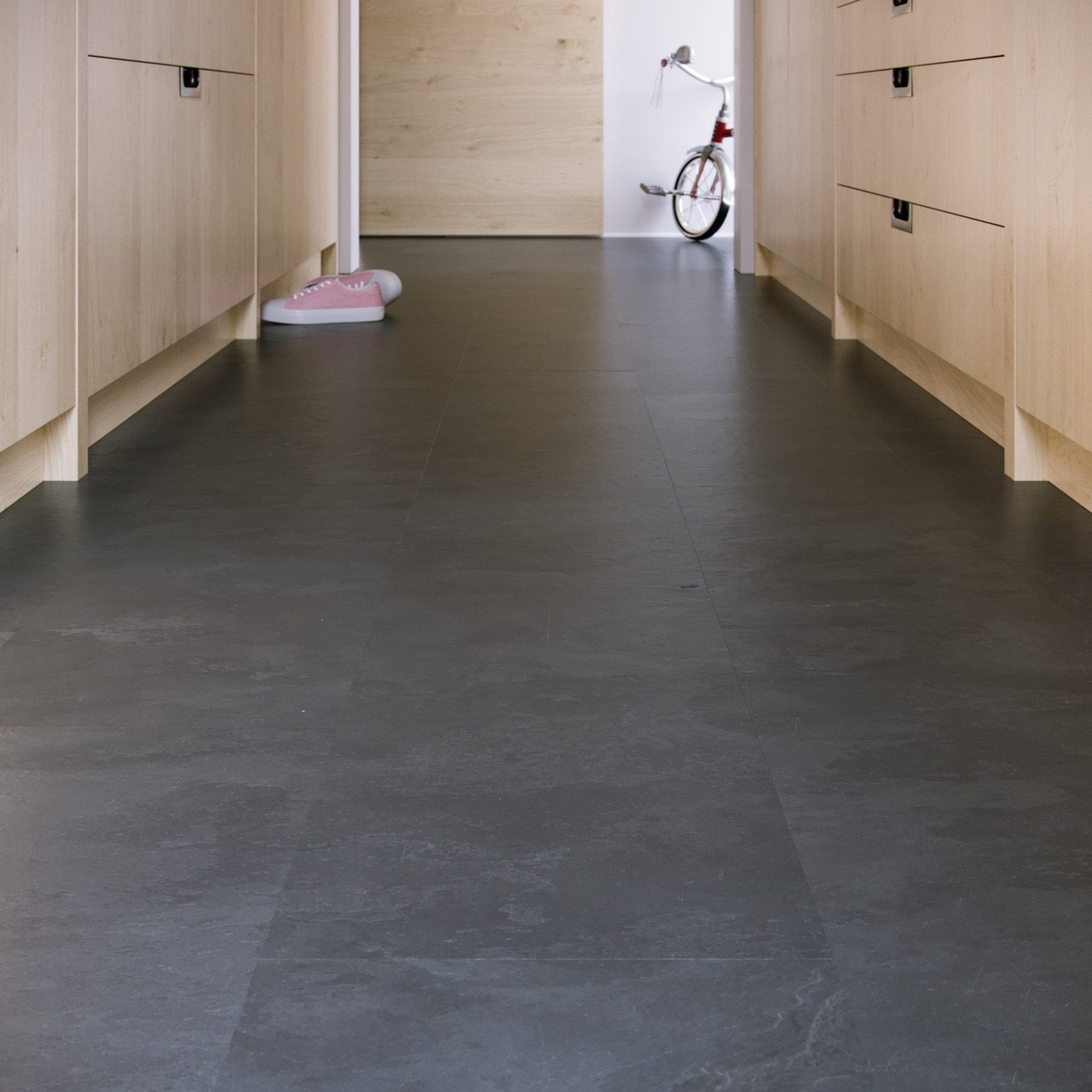
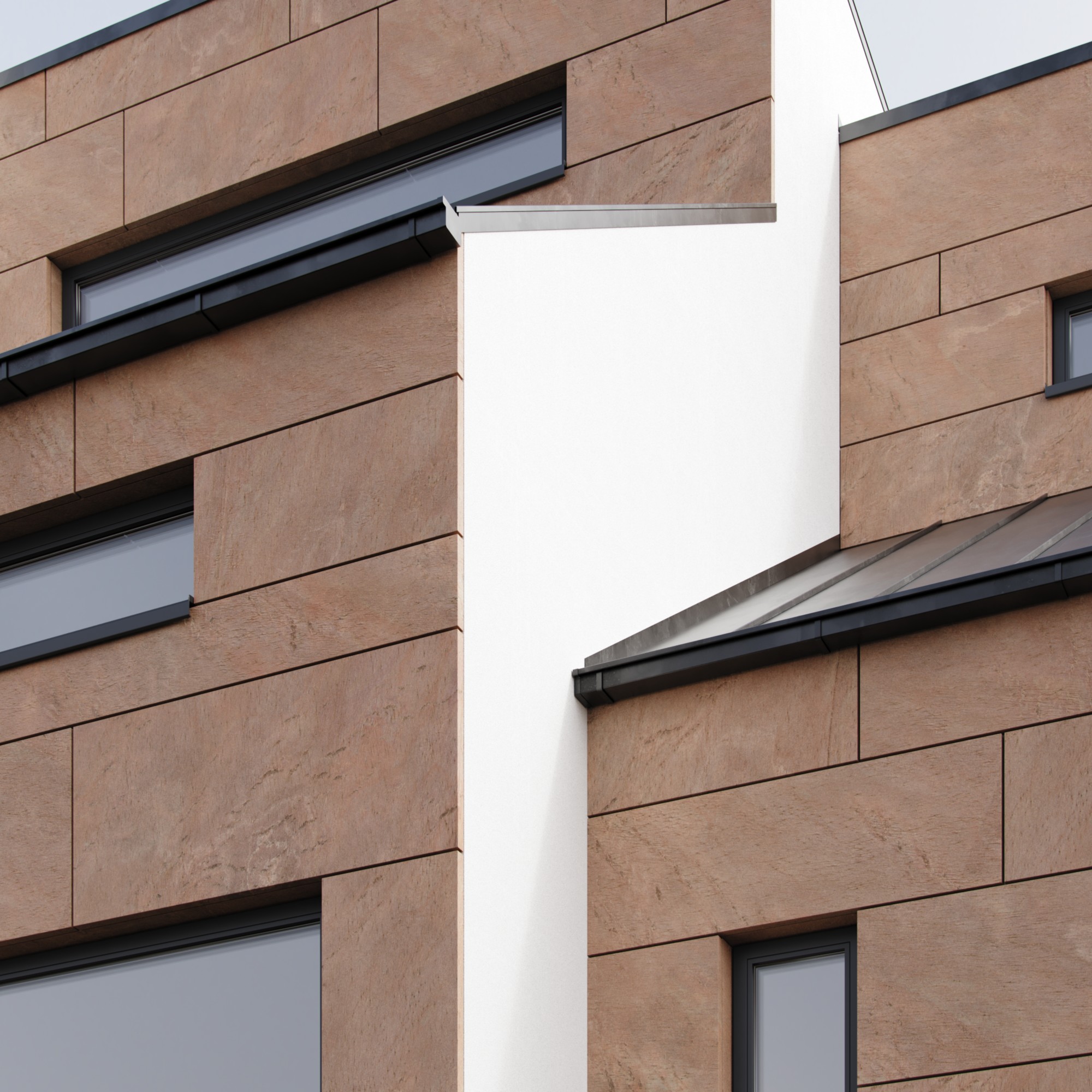
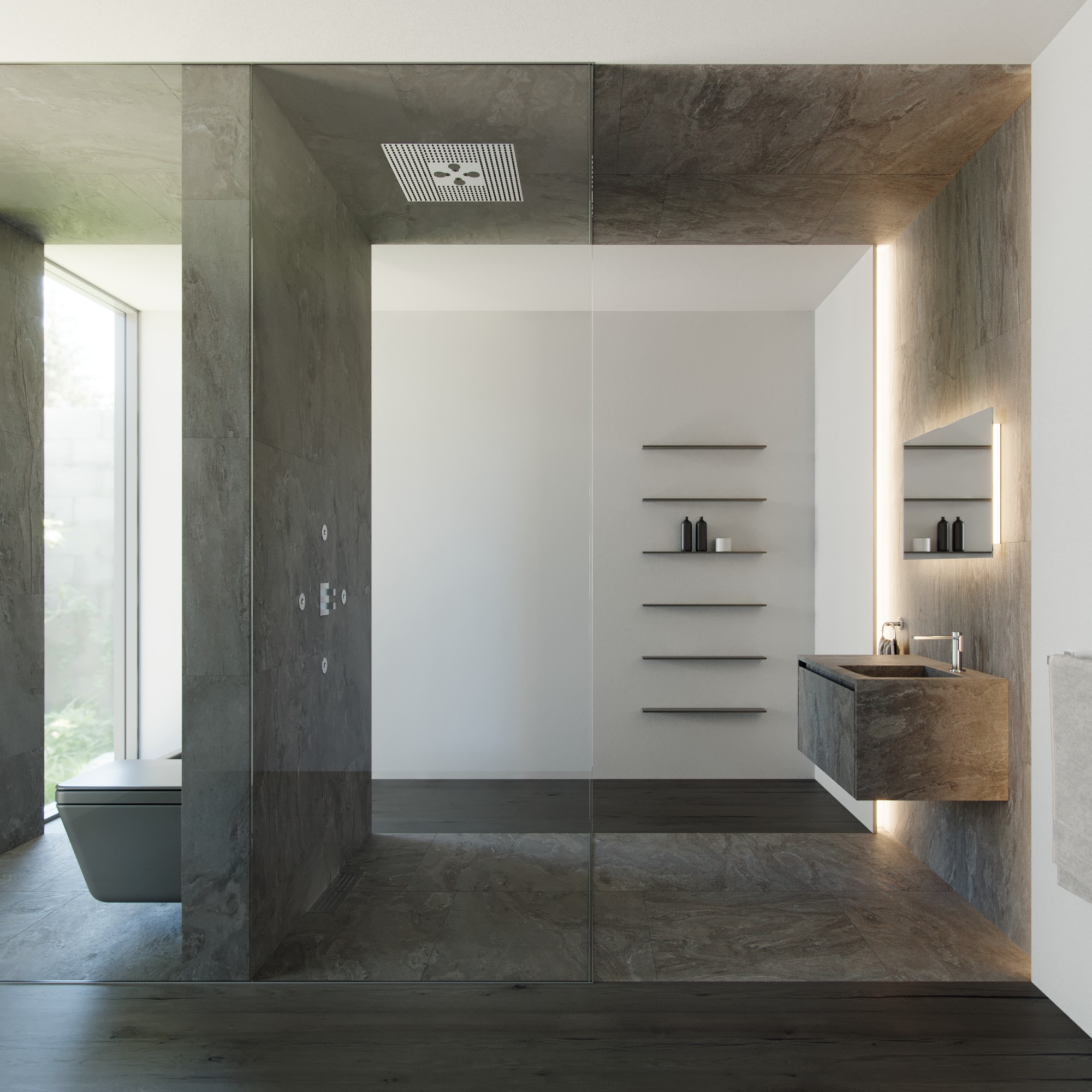
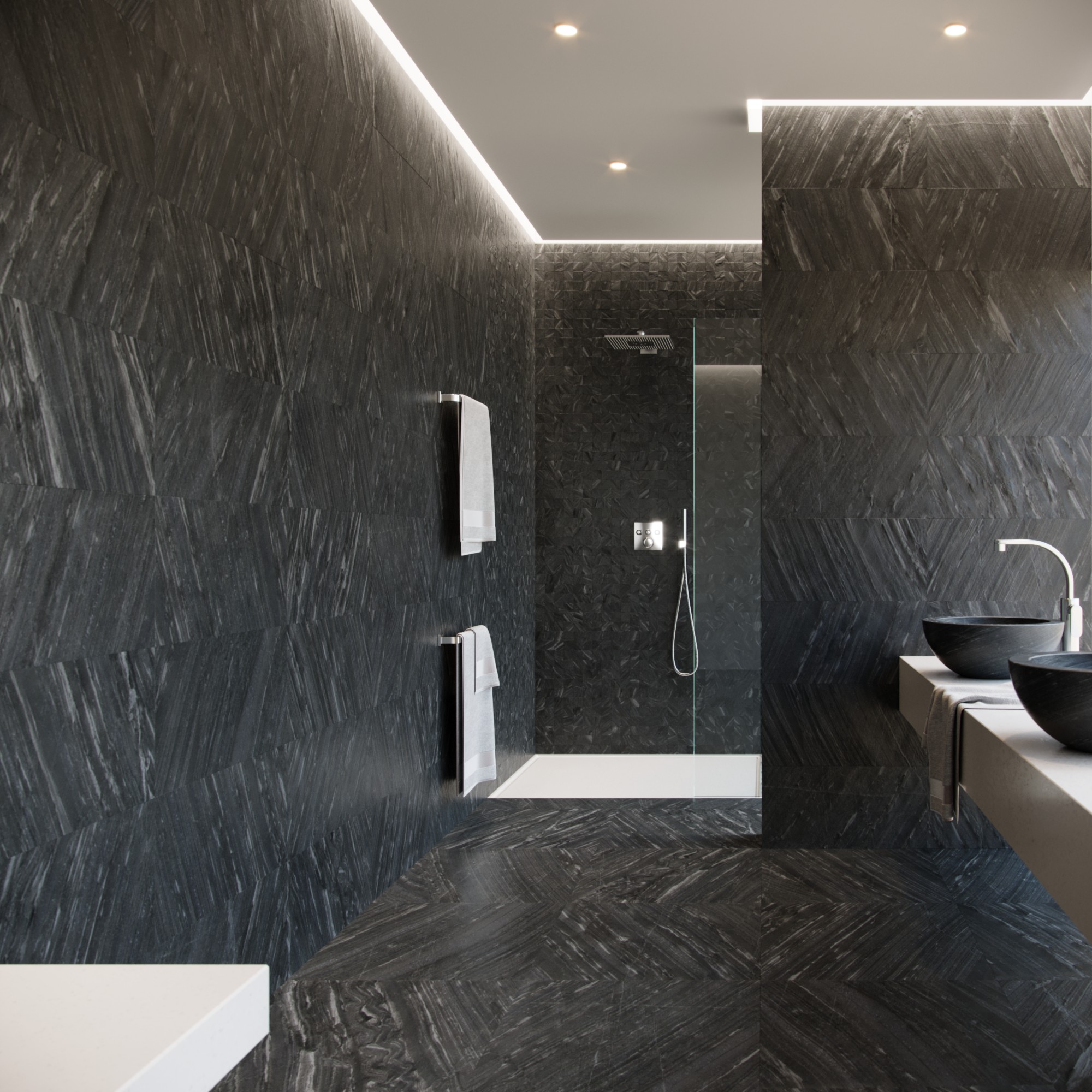
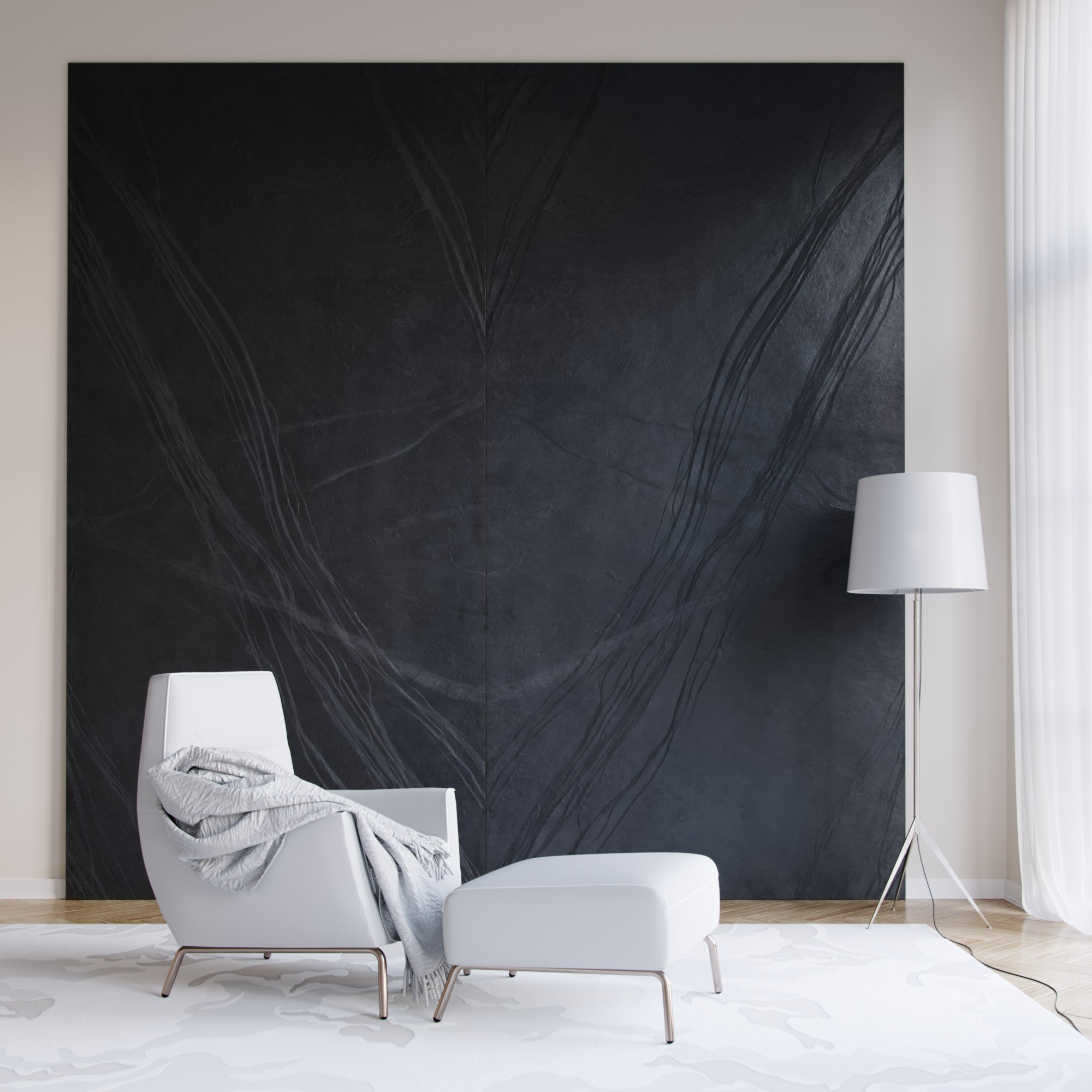
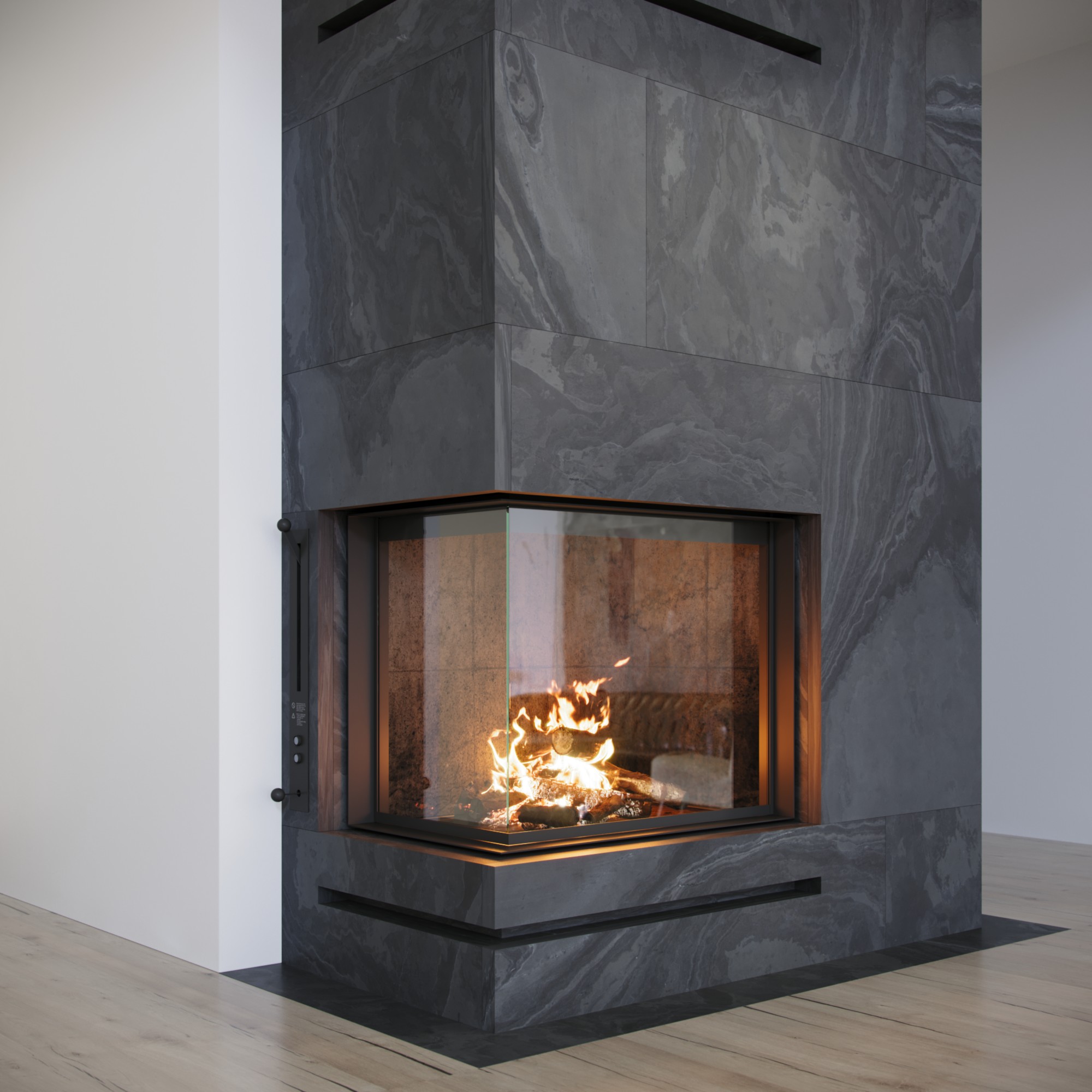
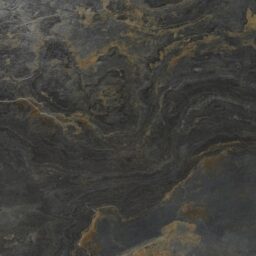
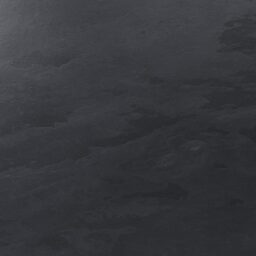
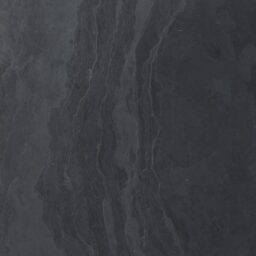
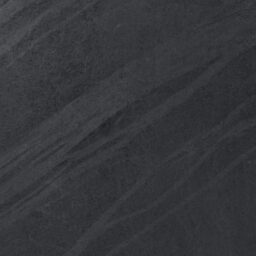
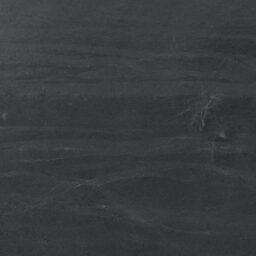
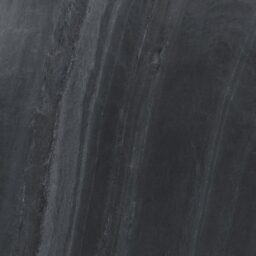
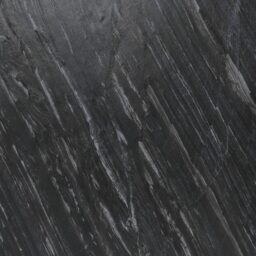
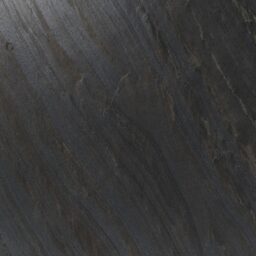
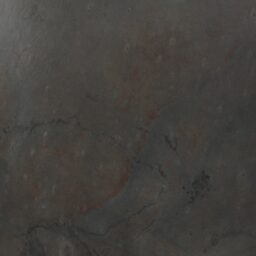
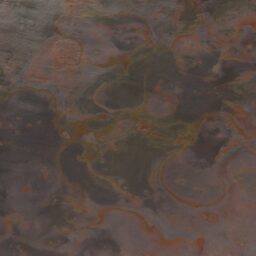
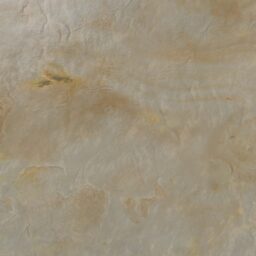
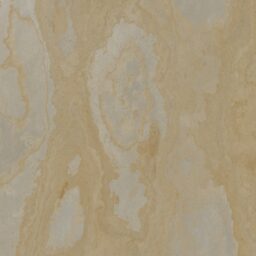
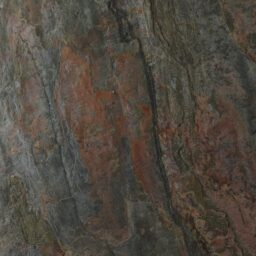
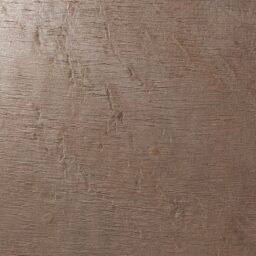
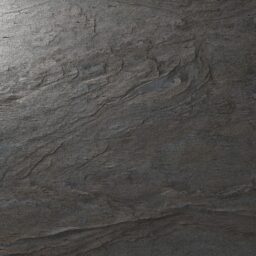
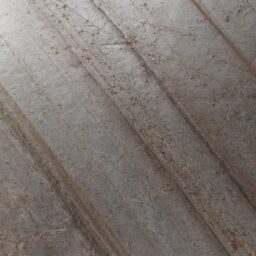
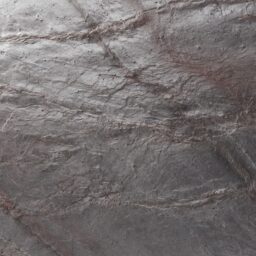
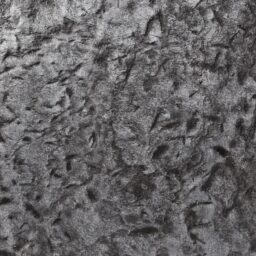
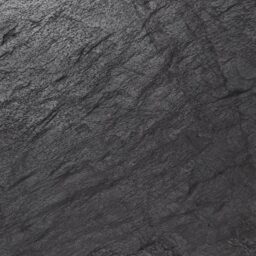
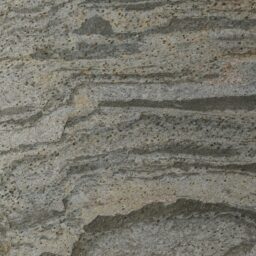
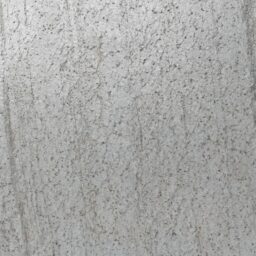
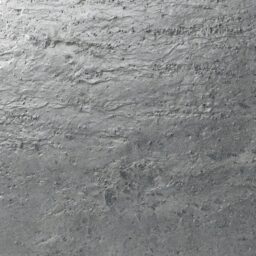
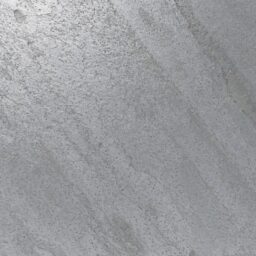
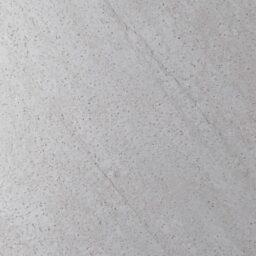
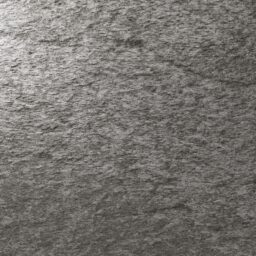
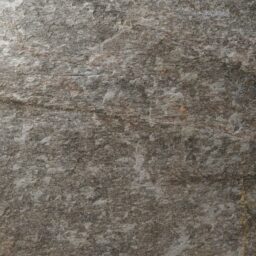
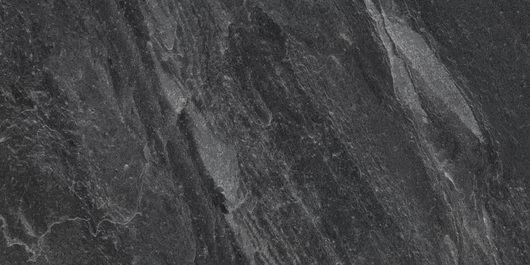
This collection contains 35 different stone textures, covering mica schist and slate. We took care to include a representative selection of both stones, while attempting to strike a balance between distinctiveness and versatility.
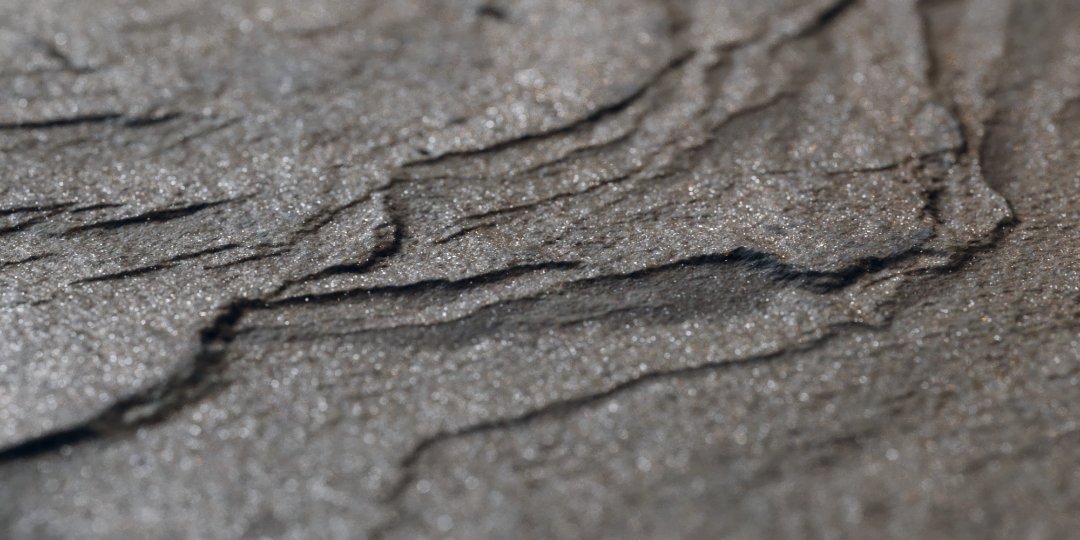
3D Scanned
Our tried and tested scanning process captures every aspect that gives stone its characteristic appearance in great detail – down to sub-millimeter level. Accurate normal, bump and reflectivity maps are essential to achieve truly photo-real and authentic render results.
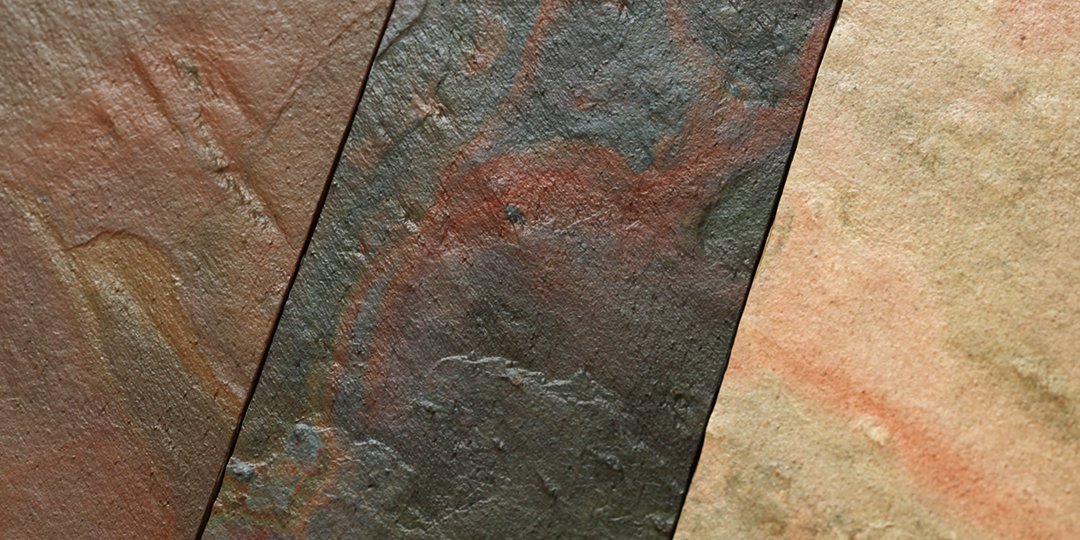
Color Variations
Every texture comes with three color variations – 105 in total. To achieve authentic results, we employed various kinds of post-processing to match photographic reference as closely as possible.
Map Types
Beside several color variations, each texture consists of maps containing information to surface normals, surface height and reflectivity – all essential for realistic rendering results.
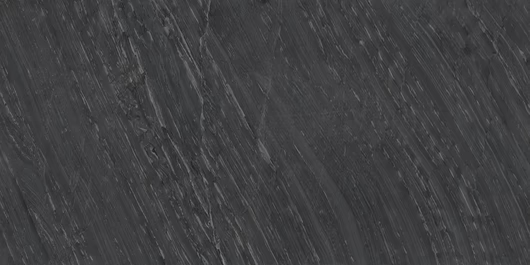
Large Area, High Resolution
Most textures come in two different size/resolution variants: A square, seamless version of the texture of approx. 160cm x 160cm @ 160 DPI, as well as a version that preserves the full area of the scanned stone slab of 300cm x 150cm @ 120 DPI.
This allows you to have the convenience of a seamless texture, while still giving you the option to employ the full surface area when needed.
Ready-to-use Materials
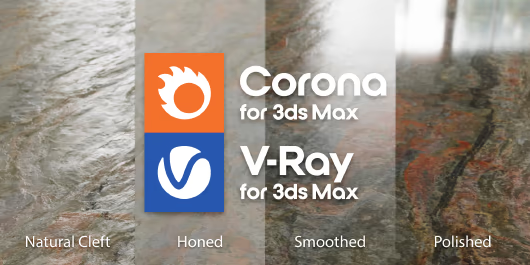
We have included ready-to-use material setups for Corona™ and Vray™ (both for 3ds Max™ 2020+).
Materials setups for other software following soon! Let us know below which we should prioritize.
How to use
While our textures generally do not need any special treatment or workflow, nevertheless here some basic pointers on how to use this product effectively. Should you have further questions on how to use our textures, please don’t hesitate to get in touch!
Texture file management
Best practice is to copy all texture files to a local hard drive to have them at the ready. Use an SSD for faster access speeds. Put map files into appropriate sub-folders, e.g., ‘maps\stone’.
Tell your rendering software where to look for texture maps. Most offer a configuration dialog where you can add new folders.
Resolution management
Most of the textures contained in this product come in a native resolution of approx. 100 megapixels. Depending on the needs of your scene, it might not be necessary, or, depending on the hardware specs of your computer, not feasible to use these textures in their full resolution all the time.
Use the included low-res versions (approx. 6 megapixels) to do your scene setup and test rendering, and then only switch to the full resolution where beneficial.
Custom color variations
We provide uncompressed versions of the diffuse maps in PNG format as an optional download. Use these to create your own texture color variations without having to worry about compression artifacts and the reduced color fidelity of JPEG files.
Correct gamma settings for maps
When adding texture maps to a material, the correct gamma setting for the map should be set. Please consult the documentation of your rendering software to learn how this is done.
| Map type | Color spcae / Gamma setting |
| Diffuse (_d), Specularity (_s) | sRGB / Gamma 2.2 (Default Gamma) |
| Normals (_n), Bump (_b) | Linear / Gamma 1.0 (No Gamma) |